Updated: January 16, 2026 8:46am

Prism Users Guide - Chapter 4. Price, Cost, Discounts
4.1.1 About Price

Price is the amount that you charge a customer for an item or service. When adding a new item to Prism Inventory, you will enter a Price and Cost for the item. The difference between the Price and Cost is recorded in the Margin % field. Prism has several price-related preference settings as well as permissions that control employee ability to edit price. This topic has information about:

  • Price Fields
  • Price-Related Preferences
  • Price-Related Permissions
  • Price Levels
  • Price Adjustments
  • Seasonal Pricing

Price Manager
For information about adjusting prices using Price Manager, see Chapter 18. Price Manager.

4.1.1.1 Price - Preferences

Preference Description
Allow voucher to update inventory prices Node Preferences > Purchasing > Vouchers

This preference, when enabled, will add a "Price" column to the voucher item grid. By default, this Price column will display the Price for the currently active Price Level. To update inventory prices, the user can edit the Price field. When the voucher is updated, if any Voucher Prices have been changed, a prompt is displayed to the user:
Update Inventory Prices?
Yes - Updates the voucher and generates price adjustment memos.
No - Updates the voucher without generating price adjustment memos (therefore, no price change).
By default, the "Allow Voucher to Update Inventory Prices" preference is disabled

Bring original price from Price Level Node Preferences > Transactions

(Must be set at the Store level or lower)
This preference sets the price level to use as the "original price" when making comparisons between the base price and comparison price. When this preference is selected, if there is a difference between the price on the document for the item and the price for the price level selected in preferences, the difference is displayed as the discount amount and discount percent for the item. This preference is ignored if Use accumulated discounting is selected. All price changes will be compared to this price.
At the Corp or Sub level, this is set to "Active Price Level" and cannot be changed.

Create price adjustments for items with zero OH Qty Node Preferences > Merchandise > Adjustments
If selected, price adjustments will be applied to items with a current on-hand quantity of zero. If not selected, price adjustments will not be applied to items with a current on-hand quantity of zero.
Margins Affect Node Preferences > Merchandise > Inventory > General
Select either Price or Cost to have changes to Margin affect that value.
Alert when Item Price differs from Style Price Node Preferences > Merchandise > Inventory > General
If selected, an alert will be displayed to users when a change is made to an item's price such that the price is different from other members of the same style.
Use Seasonal Pricing Node Preferences > Merchandise > Inventory > Pricing > Price Levels
 

4.1.1.2 Price-Related Permissions

Field Description
Adjustments - Create Price Memo Allows group members to create price adjustment memos to change the price of one or more items.
ASN Vouchers - Change Price Allows group members to change the Voucher Price on ASN Vouchers.
Customers - Change Price Level Allows group members to change the price level assigned to customers.
Inventory - Edit Item Prices Allows group members to edit the Price (or Price with Tax) field in Inventory.
POS - Change Price Level Allows group members to change the price level on a transaction.
Lookup Zero-Priced Items If selected, zero-priced items are included in item lookups done by group members.
Vouchers - Change Price Allows group members to change the Voucher Price of items as they are being received.

4.1.1.3 Price Fields
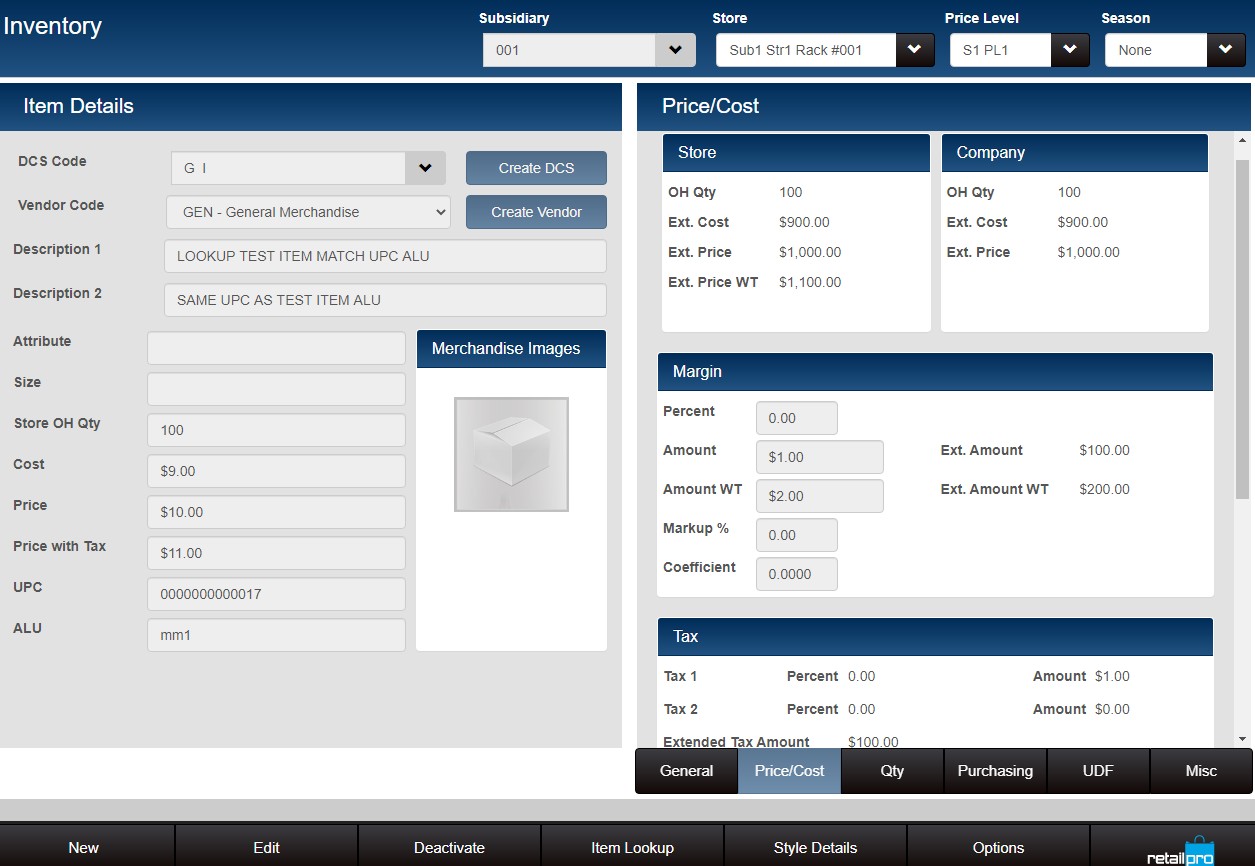
The following table lists price-related fields found in Prism. In Inventory Item Details, there is a Price/Cost tab where price-related fields are grouped.

Field Description
Price The selling price for the item.
Price with Tax In VAT environments, Price with Tax is used instead of Price to indicate the selling price for the item.
Orig Price When working with prices and discounts (including promotions), the "orig price" (original price) is the price before discounts (i.e., the Inventory Price). If using price levels, the "orig price" value is, by default, the "Price" in the currently active price level; however, this can be changed in Admin Console > Node Preferences > Transactions > General: Bring original price from: [price level name].
Margin % The difference between the Price and the Cost. The cost is expressed as a percentage of the price.
Ext Price (Store and Company) You can view the extended price for the item at the store and company level. Store: Price x Store OH Qty; Company: Price x Company OH Qty
Ext Price WT (Store and Company) Same as above, except using Price with Tax.
Store Min Ext Price The extended price for item at its minimum stock level.
Store Max Ext Price The extended price for item at its maximum stock level.


Sample Inventory Price and Cost Tab showing extended cost, extended price and margin
Inventory price and cost