Order Dates
Various dates can be associated with an order. These dates can help retailers prioritize and cancel orders when needed.
On an order in progress, click the Order Details button. Click Order Dates.
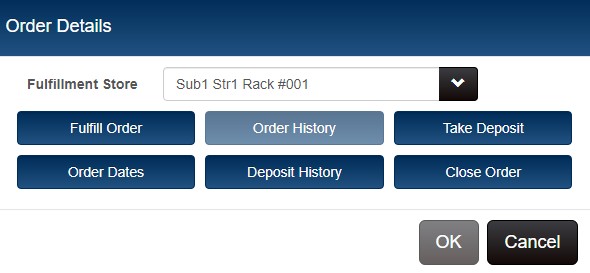
A pop-up shows each date field associated with the order.Click the calendar icon to edit dates as needed.

Order Date Fields
| Field | Description |
|---|---|
| Order Date | Automatically populated with the current date/time when the document is created. The value is editable. |
| Cancel Date | The date when the order should be cancelled, if the customer hasn't come in to fulfill the order, or if the retailer is unable to fill the order. Default = Null. |
| Due Date | The date the order is due to be completed. You can configure preferences to specific a default Due Date that is a certain number of days after the Order Date. Default = Null. |
| Ship Date | The expected (or planned) date the item will be shipped to the customer. Default = Null. |
Order Date Preference
In Preferences & Settings > Transactions > Orders, you can set the default due date for orders, based on each order's Order Date. Enter the maximum number of days that can elapse before an order is filled. For example, the merchant can have a policy that customers must fill any orders within 30 days. If the number of days entered in preferences has already passed and a user displays the order, a prompt will be displayed to inform the user. At that point, the only option will be to close the order. This provides the following benefits to retailers:
- Helps ensure that orders are fulfilled and handled in a timely manner.
- Reduces the cost associated with storing the item in inventory
- Reduces lost sales if other customers want to buy the item
Manually Editing Due Date on Orders
The preference only sets the default due date for orders. Users can manually edit the Due Date. To view/edit the Due Date, use Transaction Lookup to display the order. Click the Order Details button and then click Order Dates. A pop-up shows the key dates for the order. To edit dates, click the calendar icon and select the desired date.